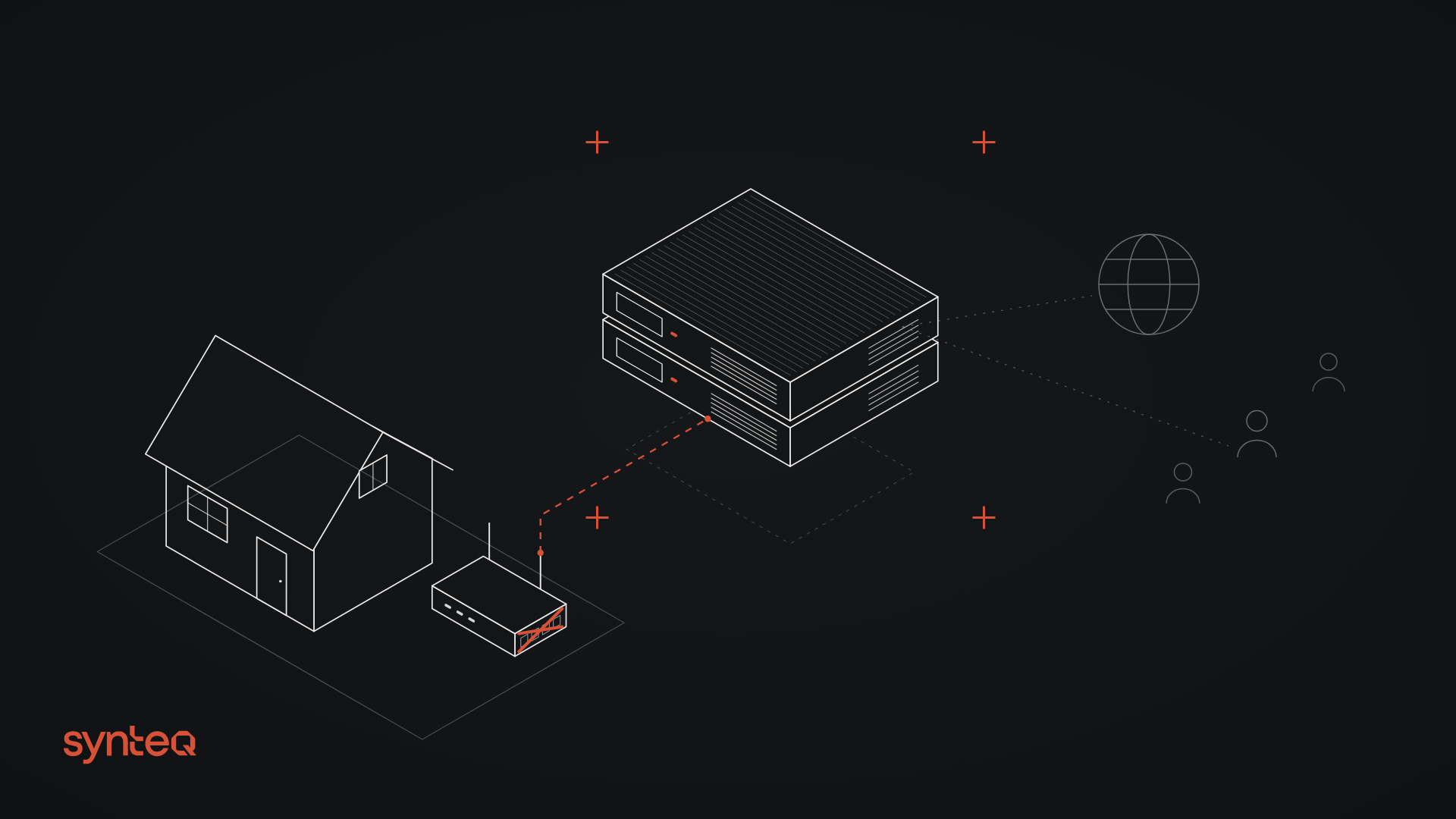
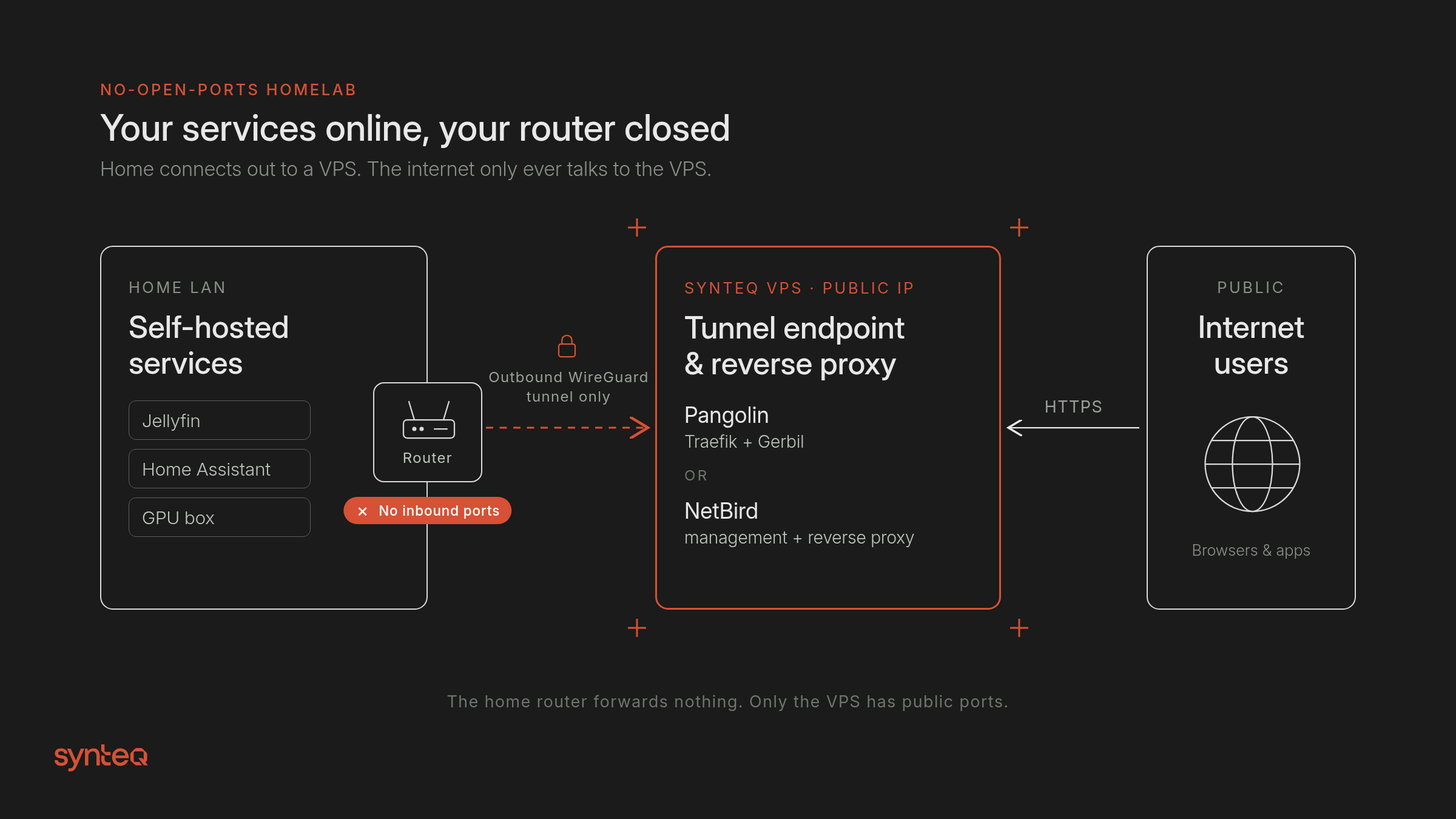
TL;DR: Put Jellyfin, Home Assistant or a private AI endpoint online without opening a single router port. Your home network dials out over WireGuard to a small Synteq VPS running Pangolin or NetBird, and the VPS handles the public traffic. It works behind CGNAT, carries any protocol, and keeps TLS on hardware you control.
Your ISP puts you behind CGNAT, your router's port-forwarding page is a mess, or you simply don't want your home IP in DNS. You still want Jellyfin on your phone, Home Assistant from the office, and a private AI endpoint your agent can reach.
The usual answer is Cloudflare Tunnel. It's free, it works, and for plenty of people it's the right choice. The other answer, and the one that's been all over self-hosted communities this year, is to run your own edge: a small VPS with a public IP that your home dials out to. Nothing at home listens on the internet.
This guide builds that edge with one of two open-source tools:
- Pangolin: an identity-aware reverse proxy plus a WireGuard tunnel. It publishes web apps at
https://jellyfin.example.comwith login, SSO, and access rules in front, and it can also do private (VPN-style) access. It's the closest self-hosted match to "Cloudflare Tunnel + Access." - NetBird: a WireGuard mesh VPN with a self-hosted control plane (think self-hosted Tailscale), plus an optional reverse proxy for publishing services.
Which one?
You want… | Pick |
|---|---|
Public URLs for web apps, with a login page in front | Pangolin |
Devices on one private network (SSH, SMB, RDP, a model server) | NetBird |
Both | Pangolin (public resources plus private clients) or NetBird with its proxy enabled. Both can do both. Pick the one whose UI you prefer. |
Zero servers to run, and you're fine with TLS terminating at a third party | Cloudflare Tunnel |
A self-hosted Tailscale control server that keeps the official Tailscale clients | Headscale (not covered step by step here) |
Cloudflare Tunnel vs. running your own edge
Cloudflare Tunnel | Pangolin / NetBird on your VPS | |
|---|---|---|
Cost | Free tier | The VPS (from about $4/mo on Synteq) |
Who terminates TLS | Cloudflare | Your VPS |
Protocols | HTTP(S) publicly; other TCP/UDP needs the WARP client or | Any TCP/UDP you route (games, WireGuard, raw TCP) |
Large media and streaming | Governed by Cloudflare's service-specific terms. Read them for your use case. | Limited by your VPS bandwidth allowance |
Lock-in | Cloudflare account and DNS | Open source. Move the VPS anytime. |
Part 1: The home side (physical build)
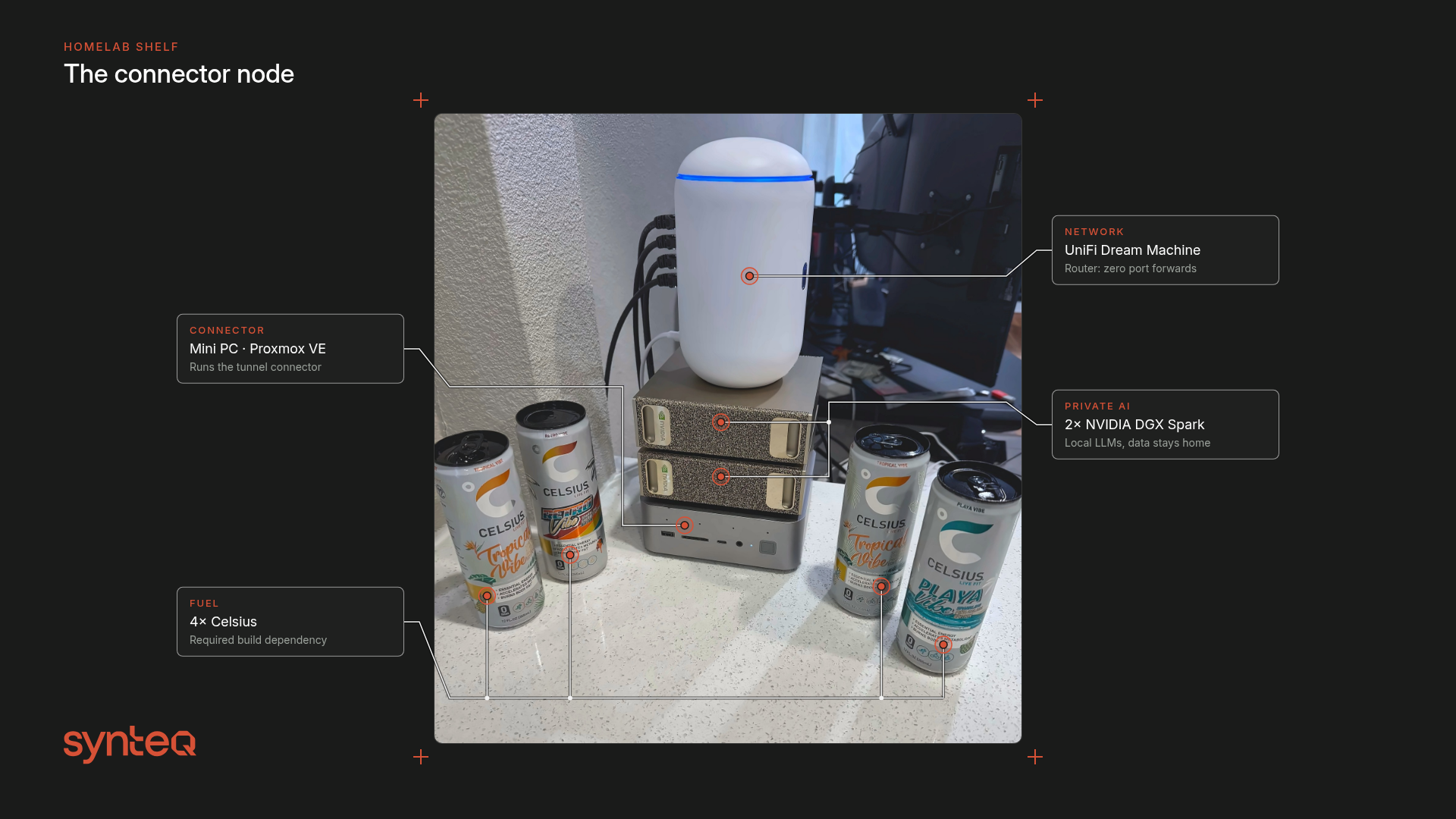
You don't need new hardware. You need one always-on machine at home to run the site connector (Pangolin's newt/CLI or the NetBird client):
Tier | Home hardware | Notes |
|---|---|---|
1 | The box already running your services (a NAS, a Proxmox host, a Pi) | Install the connector directly on it. |
2 | A small LXC or VM on Proxmox dedicated to the connector | Keeps the tunnel separate from your apps. Recommended. |
3 | A router appliance (OPNsense or pfSense mini PC) | Put the NetBird client on the router so the whole LAN is routable. |
Throughput is limited by your home upload speed and the VPS's network, not by the connector.
Part 2: Deploy the edge VPS on Synteq
Size it
- Pangolin says "1 vCPU, 2GB RAM, and 8GB SSD is enough for most," and recommends adding swap if you only have 1GB (choosing a VPS). Supported OS: Ubuntu 20.04+ or Debian 11+.
- NetBird's self-host quickstart asks for "a Linux VM with at least 1 CPU and 2GB of memory" (quickstart).
On Synteq, 1 vCPU / 2GB RAM / 20GB NVMe / 5TB bandwidth works out to $4.20/mo on the VPS configurator. Streaming media through the tunnel counts against the VPS bandwidth, so raise the allowance (up to 320TB) if you'll serve a lot of video. Pick the location closest to your home so the extra hop stays short. Check latency first with our Looking Glass.
Open these ports (and only these)
Tool | Ports on the VPS |
|---|---|
Pangolin | 80/tcp, 443/tcp, 51820/udp (site tunnels), 21820/udp (client tunnels) |
NetBird | 80/tcp, 443/tcp, 3478/udp (STUN/TURN) |
Both | 22/tcp for SSH (consider limiting it to your IP) |
Step 1: Order the VPS
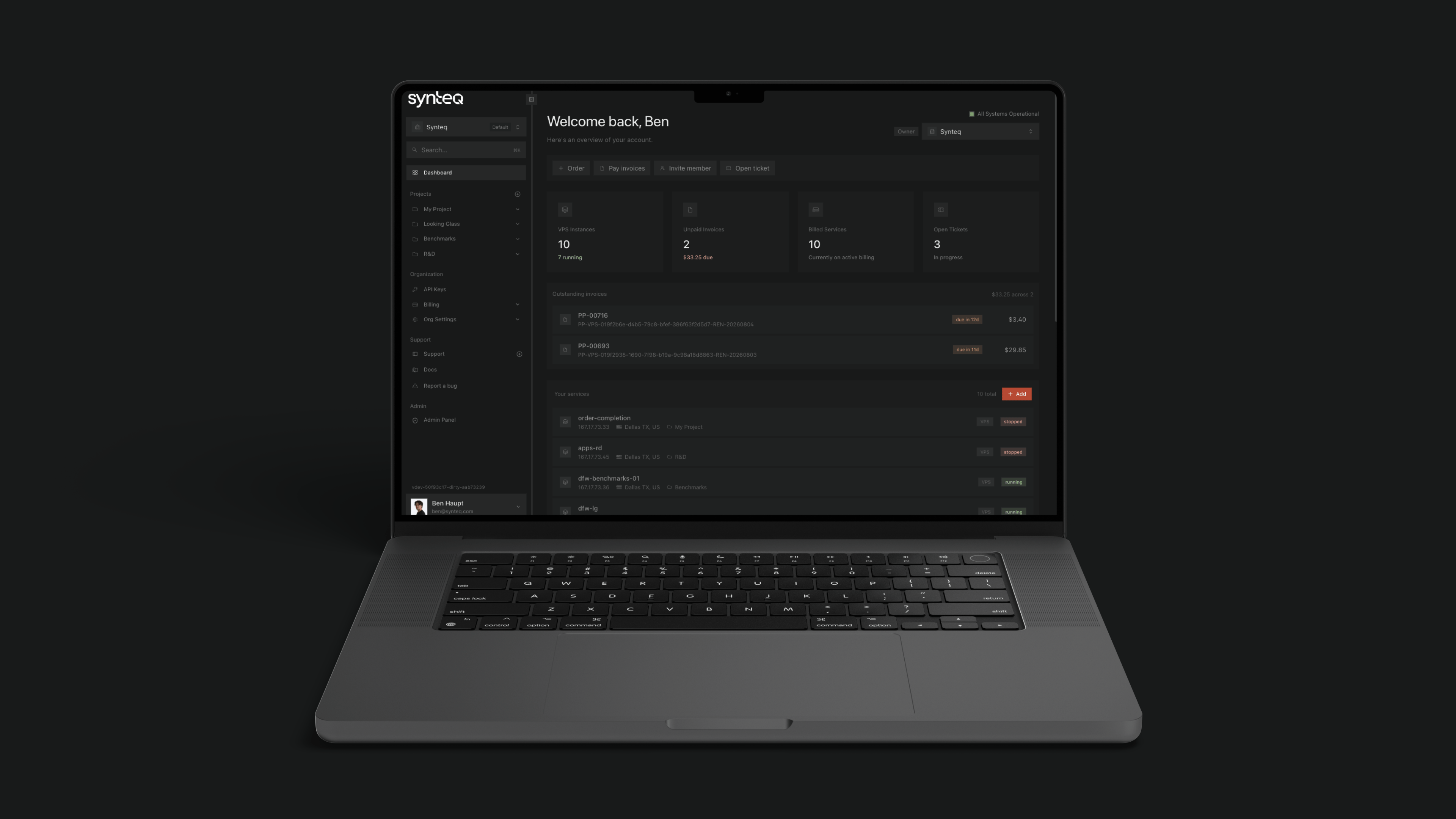
Portal: in Synteq Cloud, click Order new → VPS, set 1 vCPU / 2GB / 20GB, choose the location, Ubuntu 22.04 or Debian 12, a hostname, and your SSH key, then pay (Creating a Resource, Adding an SSH Key).
CLI: the Synteq CLI (changelog: launched Jul 9, 2026) needs Node.js 20+:
1npm install -g @synteq/cli # or run without installing: npx synteq2synteq login # opens a browser to approve the device3synteq ssh-key add --name laptop --file ~/.ssh/id_ed25519.pub4synteq catalog # locations and plans5synteq images # OS image IDs (Ubuntu, Debian, ...)6synteq order vps # interactive wizard: pick 1 vCPU / 2GB / 20GB, location, image, key7synteq vps details <hostname> # get the public IPv4
API/automation: create a scoped key (Creating an API Key; it starts with sk_, can be IP-allowlisted and set to expire), then:
1export SYNTEQ_API_KEY="sk_REPLACE_WITH_YOUR_KEY"2# Price first (creates nothing)3curl -s -X POST https://api.cloud.synteq.com/orders/preview \4 -H "X-API-Key: $SYNTEQ_API_KEY" -H "Content-Type: application/json" \5 -d '{"kind":"virtualized","spec":{"custom_vcpu":1,"custom_ram_gb":2,"custom_disk_gb":20,6 "location_id":"<LOCATION_ID>","image_id":"<UBUNTU_IMAGE_ID>","hostname":"edge-01",7 "ssh_key_id":"<SSH_KEY_ID>"}}'8# Then POST the same body to /orders to place it (full schema: cloud.synteq.com/docs/api)
Get the location and image IDs from GET /orders/catalog or synteq catalog -o json.
Step 2: Point DNS at the VPS
Create an A record for your dashboard (pangolin.example.com or netbird.example.com) pointing at the VPS IP. For Pangolin, also add a wildcard *.example.com (or *.apps.example.com) so each resource gets its own subdomain. For NetBird's optional proxy, add a wildcard CNAME *.netbird.example.com pointing to netbird.example.com.
Step 3: Basic hardening
1ssh root@<VPS_IP>2apt update && apt -y upgrade3apt -y install ufw fail2ban4ufw allow OpenSSH5ufw allow 80/tcp && ufw allow 443/tcp6# Pangolin:7ufw allow 51820/udp && ufw allow 21820/udp8# or NetBird:9# ufw allow 3478/udp10ufw enable
Both installers run everything in Docker. Docker-published ports can bypass UFW rules, so treat the list above as the intended exposure and don't publish anything else.
Path A: Pangolin
A1. Install
1curl -fsSL https://static.pangolin.net/get-installer.sh | bash2sudo ./installer
The installer asks for your base domain, dashboard domain, and Let's Encrypt email, then pulls Pangolin, Gerbil (the WireGuard tunnel manager), and Traefik (quick install). It can also add CrowdSec.
A2. Initial setup
Get the one-time setup token and open the setup page:
1sudo docker compose logs pangolin | grep -i token2# then browse to: https://pangolin.example.com/auth/initial-setup
Create the admin account and your first organization.
A3. Connect your home (a "site")
In the dashboard, go to Sites → Add Site and copy the ID and secret. On the home machine:
1curl -fsSL https://static.pangolin.net/get-cli.sh | bash2sudo pangolin service install site --id <SITE_ID> --secret <SITE_SECRET> \3 --endpoint https://pangolin.example.com
(Use pangolin up site … to test in the foreground, or the fosrl/pangolin-cli Docker image. See install a site.)
A4. Publish Jellyfin (or anything else)
Resources → Add Resource → Public (HTTP): subdomain jellyfin, site = home, target http://192.168.1.50:8096. Leave authentication on for admin tools. For Jellyfin, use Pangolin's rules to bypass the login page for the apps' API paths, or let family sign in with SSO. Traefik issues the certificate automatically.
A5. Private access (no public URL)
For SSH, SMB, or your GPU box's llama-server from post #1, create a private resource and connect laptops with the Pangolin client. Nothing gets a public hostname.
A6. AI Gateway (optional)
Pangolin 1.22 added an AI Gateway: a resource with a Custom provider (OpenAI Chat Completions format) pointing at vLLM or Ollama on a site, with per-user or virtual API keys in front (AI Gateway docs). It's a clean way to share one home GPU, or a Synteq cloud GPU joined as a site, with a few people or agents without exposing the raw model port.
A7. High availability? Read this first
Pangolin 1.23 added HA and clustering, but it's an Enterprise Edition feature (Enterprise Edition docs). EE is free for personal use and for businesses under $100k in annual revenue, but it needs a license key. For most homelabs, one VPS plus a documented rebuild (Step 1 + A1 + restore config/) is plenty. Synteq backs its network with a 99.99% SLA.
Path B: NetBird (self-hosted)
B1. Install the control plane
The VPS needs Docker (with the Compose plugin), jq, and curl:
1curl -fsSL https://get.docker.com | sh2apt -y install jq curl3curl -fsSL https://github.com/netbirdio/netbird/releases/latest/download/getting-started.sh | bash
Enter your domain (netbird.example.com) and choose the built-in Traefik option. The script can also enable the NetBird Proxy (to publish services publicly, which needs the wildcard CNAME from Step 2) and CrowdSec (self-host quickstart). When it finishes, open https://netbird.example.com and create the admin account.
B2. Join devices
In the dashboard, create a setup key, then on each machine:
1curl -fsSL https://pkgs.netbird.io/install.sh | sh2sudo netbird up --setup-key <SETUP_KEY> --management-url https://netbird.example.com
(Linux install docs.) Add your laptop and phone (the NetBird apps take a custom management URL), your home server, and, if you followed post #1, the agent VPS and GPU box.
B3. Reach the whole LAN
Make the home machine a routing peer for 192.168.1.0/24 (Network Routes or Networks in the dashboard), and add access policies so only your devices group can reach it.
B4. Publish a service publicly (optional)
If you enabled the NetBird Proxy, add a service in the dashboard (for example jellyfin.netbird.example.com → a home peer on port 8096). NetBird's own team showed off a home Minecraft server behind CGNAT this way (@netbird on X).
Troubleshooting
- Let's Encrypt fails: DNS hasn't propagated, or port 80 is blocked. Check with
dig +short pangolin.example.com. - Site shows offline (Pangolin): make sure 51820/udp is open on the VPS and that the home network allows outbound UDP.
- Peers connect but are slow (NetBird): they're relaying. Confirm 3478/udp is open, and check
netbird status -d. - Out of memory on a 1GB server: add a 2GB swapfile, or resize the VPS in place (Resizing a Resource).
Frequently Asked Questions
If you want public URLs with a login page, Pangolin is the closest self-hosted match. If you mostly need private access between your own devices, a self-hosted NetBird or Headscale network is simpler. Both run on a small VPS that you control.
Pangolin's docs say 1 vCPU, 2GB RAM, and 8GB of SSD is enough for most setups, with swap recommended on 1GB servers. On Synteq, a 1 vCPU / 2GB / 20GB VPS is about $4.20 per month.
Yes. Your home machine makes an outbound WireGuard connection to the VPS, so you don't need a public IP or port forwarding at home. Only the VPS has open ports.
Pangolin's HA and clustering are Enterprise Edition features. Enterprise Edition is free for personal use and for businesses under $100k in annual revenue, but it requires a license key.
Tailscale is a mesh VPN with a hosted control plane. Pangolin is a self-hosted reverse proxy with an identity-aware login and a WireGuard tunnel, aimed at publishing apps. For a self-hosted mesh like Tailscale, use NetBird or Headscale.
Pangolin needs 80/tcp, 443/tcp, 51820/udp, and 21820/udp. NetBird needs 80/tcp, 443/tcp, and 3478/udp. Nothing needs to be open on your home router.